How to Log an Expense Right After You Pay (Without Opening an App)
Most expense tracking fails for a boring reason: you plan to log purchases later, and later never comes. By evening you remember the groceries but not the coffee, the parking, or the pharmacy stop. The only moment when logging is effortless and accurate is the few seconds right after you pay, while the amount is still on the screen and the reason is still in your head. This guide shows how to log expenses right after paying on iPhone, in one tap and without opening an app.
Why the moment right after paying matters
When you record a purchase at the counter, three things are true that stop being true an hour later:
- You know the exact amount. No guessing, no rounding, no digging through a bank app.
- You know what it was for. "Card payment, 23.40" in a statement is a puzzle. At the moment of paying it is obviously lunch with a colleague.
- It takes no willpower. One tap while the phone is already in your hand is easier than a ten-minute evening session you will skip on busy days.
Logging later is where small purchases disappear. Those are exactly the ones that add up, which is why a tracking habit built on end-of-day recall usually fades within weeks. If you want the bigger picture on making tracking stick, see how to track spending that actually sticks.
What logging right after paying looks like on iPhone
With an Apple Pay automation in place, the whole flow takes about as long as putting your phone away. Here is what it looks like with Lumi: Budget & Expense Tracker, an iPhone app built around this exact moment.
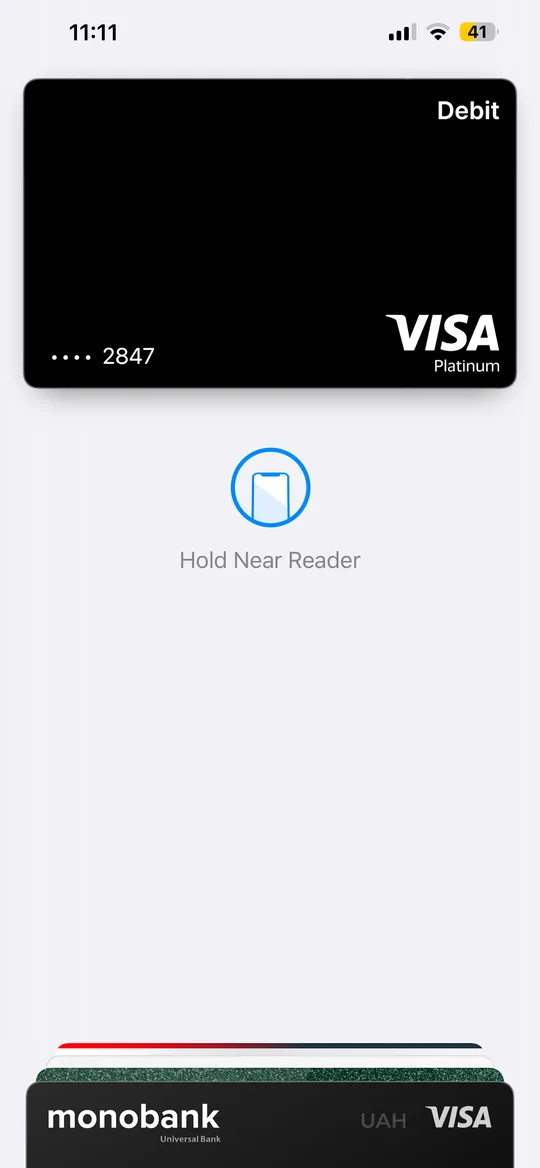
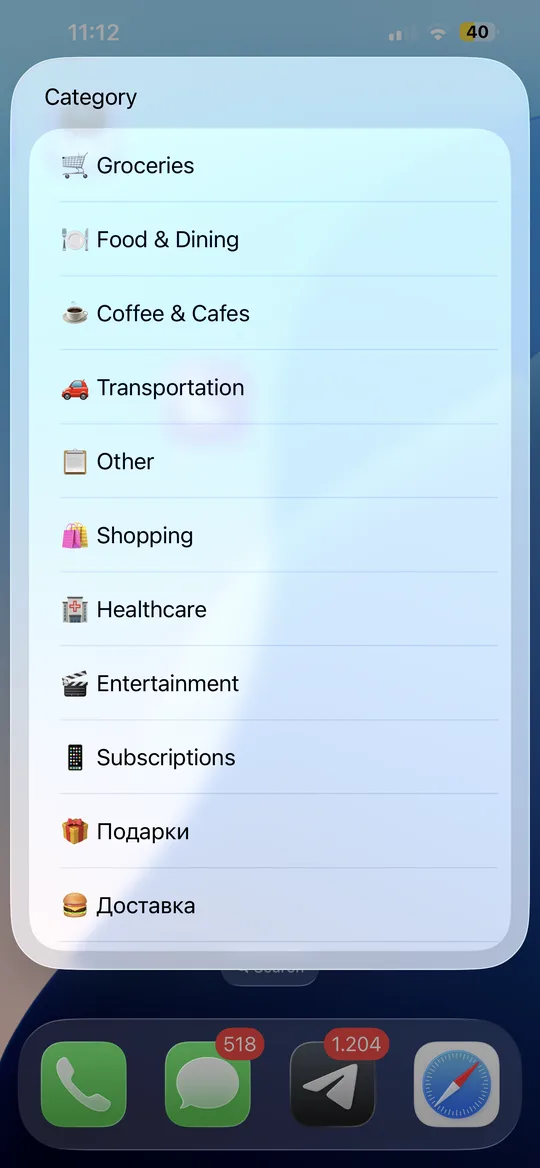
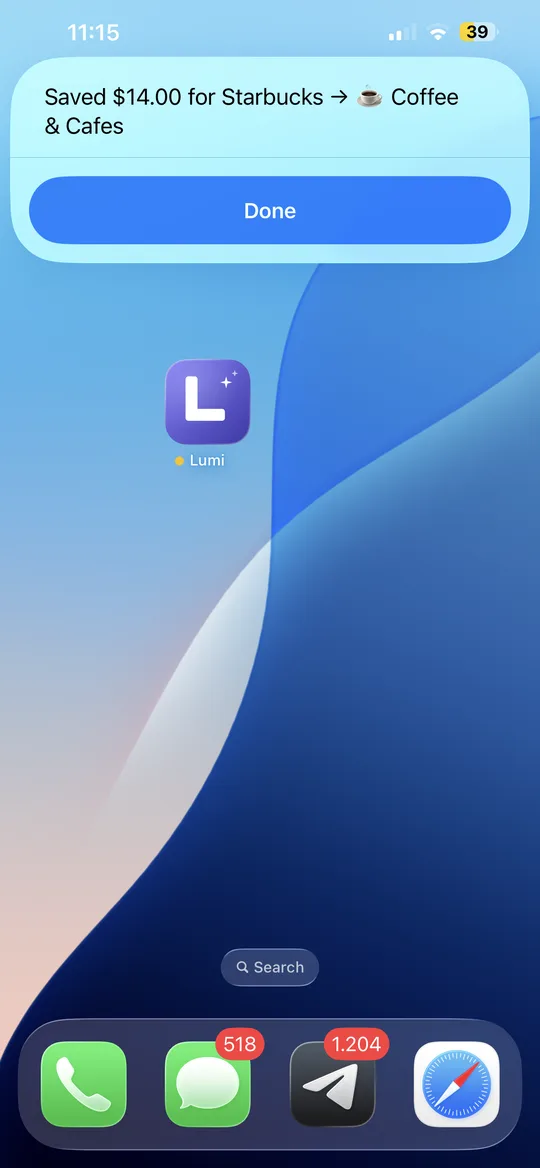
1. Pay the way you already do
Double-click the side button, hold your iPhone near the reader, done. Nothing changes at the checkout, and there is no extra app to open first.
2. Tap a category
A second after the payment goes through, a short category list appears over whatever is on your screen. The amount and merchant are already filled in from the payment, so your only decision is where it belongs: groceries, coffee, transport. One tap.
3. It's saved
A confirmation shows what was recorded, for example "Saved $14.00 for Starbucks → Coffee & Cafes". You tap Done and put the phone back in your pocket. The expense is in your budget and your monthly totals before you have left the counter.
How to set it up
The mechanism behind this is built into iOS. Since iOS 17, the Shortcuts app has a Transaction automation that runs when you pay with a card from Wallet and passes along the amount and merchant.
- Choose an expense tracker that supports Shortcuts. It needs an action the automation can call to create an expense.
- Create the automation. Open Shortcuts → Automation → +, choose Transaction, and select the cards you pay with.
- Set it to Run Immediately. Otherwise iOS asks for confirmation every time, which defeats the purpose.
- Connect the tracker's action. Pass the amount and merchant from the transaction into it, and let it ask for a category.
- Test with a small purchase. Buy a coffee and check that the expense appears with the right amount.
If you prefer to build the logging yourself, tracking expenses with Siri Shortcuts walks through a do-it-yourself version and its limits. Lumi ships a ready-made Shortcut for this, so the setup is connecting it once rather than building it, and it never asks for a bank login.
When you don't pay with Apple Pay
The Transaction automation only sees Apple Pay payments from cards in your Wallet. Cash, a physical card swipe, a bank transfer, or a payment on someone else's terminal will not trigger it. The rule stays the same, only the method changes: log it before the phone goes back in your pocket.
- Voice: say "taxi twelve euros" and let the app pull out the amount and category. See how to log expenses without typing for how this works.
- Back Tap: double-tap the back of your iPhone to open straight into a new expense. The setup is covered in what Back Tap on iPhone is.
- Cash: if cash is a big part of your spending, how to track cash spending has a simple routine for it.
Common mistakes
- Saving it for later. "I'll categorize it tonight" is the habit this whole approach replaces. Tap the category now, even if it is not perfect.
- Too many categories. A list of 30 categories turns a one-tap decision into scrolling. Eight to twelve broad ones are enough for most people.
- Only tracking Apple Pay. Automatic capture covers most card spending, but the month is only complete if cash and transfers get logged too.
- Never looking at the totals. Logging is half the loop. A short weekly look at what you spent is what actually changes behavior.
Ready to take control of your spending?
Download Free on App StoreFAQ
Can I log an expense without opening the app?
Yes, for Apple Pay payments. A Shortcuts Transaction automation can create the expense and ask for a category right over your home screen, so you never open the tracker itself. For cash, voice input or Back Tap takes a few seconds.
Does this need access to my bank account?
No. The amount and merchant come from the Apple Pay payment on your iPhone through the Shortcuts automation. No bank login or open banking connection is involved.
What happens if I pay with my Apple Watch?
The automation runs for Wallet payments on your iPhone, so Watch payments may not trigger it. Log those with voice or Back Tap when you next pick up your phone, or check the transaction in Wallet later.
Ready to take control of your spending?
Download Free on App Store