How to Connect Claude to Your Budget: Step-by-Step MCP Guide
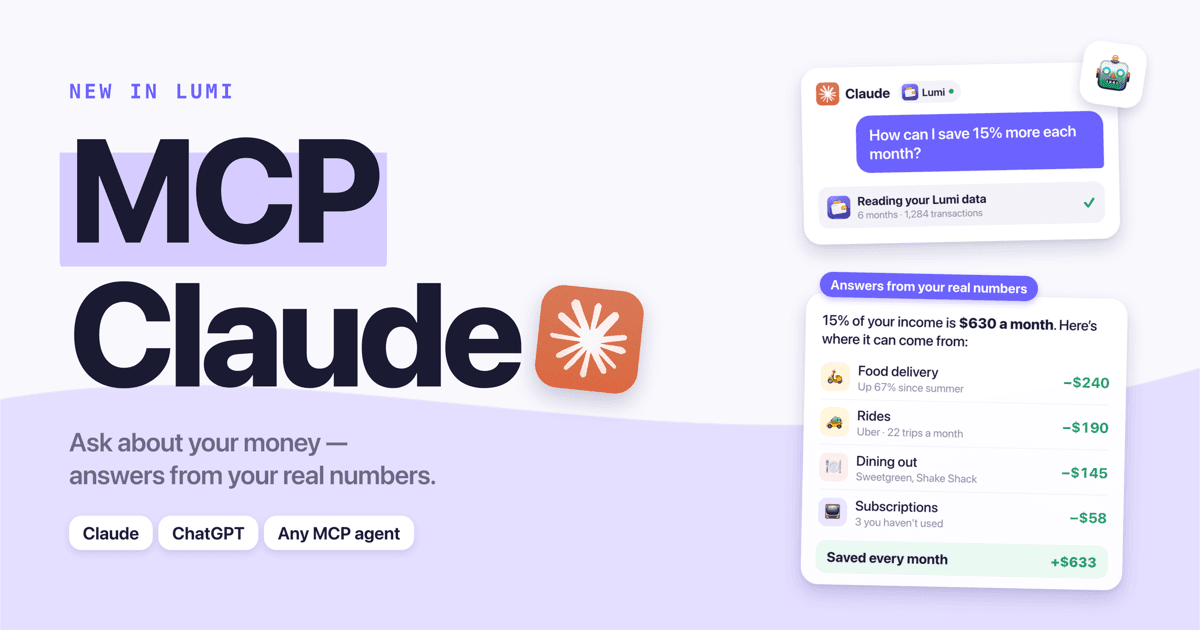
To connect Claude to your budget, add Lumi as a custom connector in Claude's settings using the URL https://lumi.herman-apps.com/api/mcp, sign in with your Lumi account, and allow read-only access. After that, Claude can answer questions like "Where did my money go last month?" using your real transactions, budgets and savings goals. The whole setup takes about a minute.
Below: the exact steps for Claude on the web and desktop, how it carries over to the iPhone app, the one-line command for Claude Code, and the first questions worth asking.
Why connect Claude to your spending data?
Claude is good at reasoning through money decisions, but out of the box it knows nothing about your money. People work around that by pasting bank exports into the chat — which is slow, error-prone and stale by next week.
A connector fixes that. Claude reads your Lumi data at the moment you ask, through the Model Context Protocol (MCP). It sees categorized expenses, income, recurring payments, budgets and goals — already cleaned up and converted to one currency — so its answers are specific: actual merchants, actual amounts, actual months.
What you need
| Requirement | Details |
|---|---|
| Claude account | Any plan that supports custom connectors. Free accounts can add one custom connector; Pro, Max, Team and Enterprise can add more (on Team/Enterprise, an owner may need to add it). |
| Lumi Premium | $4.99/month or $39.99/year. The connector reads your synced data, which is a Premium feature. |
| Lumi data synced | Open the Lumi app while signed in so your latest transactions are in your account. |
| Connector URL | https://lumi.herman-apps.com/api/mcp |
Step 1: Add Lumi as a custom connector
- Open claude.ai in a browser or the Claude desktop app.
- Go to Settings → Connectors. (In some recent versions the same page lives under Customize → Connectors.)
- Click Add custom connector (sometimes behind a + button).
- Name it Lumi and paste the URL:
https://lumi.herman-apps.com/api/mcp
- Leave the advanced OAuth fields (Client ID / Secret) empty — Lumi registers Claude automatically.
- Click Add.
Step 2: Sign in and allow access
Claude now shows Lumi in your connectors list with a Connect button.
- Click Connect. A Lumi page opens.
- Sign in with the same account you use in the Lumi app.
- You'll see what Claude is asking for: read-only access to your Lumi finances. Click Allow.
- You're sent back to Claude, and the connector shows as connected.
Claude never sees your Lumi password — it receives a token that can only read through this connector and that you can cut off at any time by removing the connector.
Step 3: Turn it on in a chat and ask
In a new chat, open the tools menu (the sliders or + icon under the message box) and make sure Lumi is enabled. Then just ask:
How can I save 15% more each month?
Claude will call Lumi's tools — you'll see steps like "get financial overview" and "get spending by category" appear — and then answer with a plan built from your categories and merchants. The first time each tool runs, Claude may ask you to approve it; you can choose to always allow Lumi's tools since they're read-only.
Ready to take control of your spending?
Download Free on App StoreUsing it on iPhone and Android
Connectors you add on claude.ai sync to your account, so Lumi also works in the Claude mobile apps — no extra setup. Add it once on the web or desktop, then ask your questions from your phone, for example right after checking a budget in Lumi.
Connecting Lumi to Claude Code
If you live in the terminal, add Lumi to Claude Code with one command:
claude mcp add --transport http lumi https://lumi.herman-apps.com/api/mcp
Then start Claude Code, run /mcp, choose lumi and sign in in the browser window that opens. Add --scope user to the command if you want Lumi available in every project, not just the current folder.
Good first questions to ask Claude
Start broad, then drill down — Claude handles follow-ups well because it can keep calling tools:
- "Give me an honest overview of my finances for the last three months."
- "What are my five biggest spending categories, and which are growing?"
- "Find subscriptions or repeating charges I might have forgotten." (pairs well with our guide on finding forgotten subscriptions)
- "Which of my budgets am I likely to exceed this month?"
- "Am I on track for my savings goals? What would I need to change?"
- "Build me a realistic monthly budget based on what I actually spend."
More ideas: 35 AI budgeting prompts for Claude and ChatGPT.
Troubleshooting
"The Lumi connector needs an active Lumi Pro subscription." Your Lumi account doesn't have Premium. Upgrade in the app, then ask again — no need to reconnect.
"No synced transactions found." Open the Lumi app while signed in and give it a moment to sync, then retry. Make sure you signed in to the connector with the same account as in the app.
Claude answers without using Lumi. Check that the Lumi connector is enabled in that chat's tools menu, or mention it explicitly: "Using my Lumi data, …".
The numbers are in the wrong currency. Tell Claude which one you want: "Show everything in EUR." Lumi converts amounts on the fly.
Months look shifted by a day. Tell Claude your time zone ("I'm in Europe/Berlin") so month boundaries match the app.
I want to disconnect. Go to Settings → Connectors (or Customize → Connectors) in Claude, open Lumi and remove it.
FAQ
Is connecting Claude to my budget safe? The connector is read-only, uses standard OAuth sign-in, and each token only works for your own account. Claude can analyze your data but can't change it. Keep in mind that what Claude reads becomes part of the chat, so it falls under your Claude privacy settings.
Does Claude get access to my bank? No. Lumi doesn't connect to banks at all — your data comes from what you log in Lumi (Apple Pay auto-import, voice, receipts, manual entries). Claude only sees that.
Can I use the free Claude plan? Yes. Claude's free plan allows one custom connector, which is enough for Lumi. You still need Lumi Premium on the Lumi side.
Does Claude remember my finances between chats? Not through the connector. Each time you ask, Claude fetches fresh data from Lumi, so answers reflect your latest transactions.
Does this work with ChatGPT too? Yes — the same URL works in ChatGPT on plans that support custom connectors. See how to use ChatGPT for budgeting.
Ready to take control of your spending?
Download Free on App Store