How to Use ChatGPT for Budgeting With Your Real Numbers
ChatGPT is a capable budgeting assistant — as long as it can see your real numbers. The best way to use ChatGPT for budgeting is to connect it directly to your expense tracker so it can read your categorized spending, income, budgets and goals when you ask. With Lumi, that's done through an MCP connector at https://lumi.herman-apps.com/api/mcp. You can also paste numbers or upload a CSV, but both go stale quickly.
This guide compares the three approaches, walks through connecting Lumi to ChatGPT, and lists the questions that get the most useful answers.
Three ways to give ChatGPT your spending data
| Method | Effort | Accuracy | Stays up to date? |
|---|---|---|---|
| Type or paste numbers into the chat | Low once, high every time | Only as good as what you remember | No |
| Upload a CSV or bank statement | Medium — export, clean up, upload | Good, but raw bank descriptions are messy | No — re-upload every month |
| Connect your tracker via MCP | One-time, about a minute | High — categorized, deduplicated, one currency | Yes — read fresh on every question |
Pasting numbers works for a quick what-if ("I earn $4,000 and spend $3,600, how do I save $500?"), but ChatGPT can only be as precise as your summary.
Uploading a CSV gives ChatGPT real transactions, and its data analysis is strong. The pain is preparation: bank exports have cryptic merchant names, no categories, and transfers that look like spending. And next month you start over. If you go this route, export from a tracker rather than a bank — for example via Lumi's export in Settings.
Connecting via MCP lets ChatGPT pull exactly what it needs, when it needs it. MCP (Model Context Protocol) is the open standard ChatGPT uses for custom connectors.
How to connect Lumi to ChatGPT
ChatGPT adds remote MCP servers as custom connectors (OpenAI also calls them apps). Availability depends on your plan and OpenAI keeps moving the menus, so if a label below doesn't match, check OpenAI's help page for "developer mode" or "custom connectors".
- Open chatgpt.com in a browser — custom connectors are set up on the web.
- Go to Settings → Apps & Connectors, open Advanced settings and turn on Developer mode if your plan requires it. On Business and Enterprise workspaces, an admin may need to allow custom connectors first.
- Click Create (or the + button) to add a new connector.
- Name it Lumi and paste the server URL:
https://lumi.herman-apps.com/api/mcp
- Choose OAuth as the authentication method and save. ChatGPT registers itself with Lumi automatically — you don't need a client ID or secret.
- A Lumi sign-in page opens. Sign in with your Lumi account and click Allow on the read-only permission screen.
- In a new chat, open the + menu, pick Lumi under your connectors (or developer mode tools), and ask your question.
You need Lumi Premium ($4.99/month or $39.99/year) for the connector to return data, because it reads your synced cloud data.
Ready to take control of your spending?
Download Free on App StoreWhat to ask ChatGPT about your budget
The best prompts give ChatGPT a goal, not just a question. A few that work well with a connected tracker:
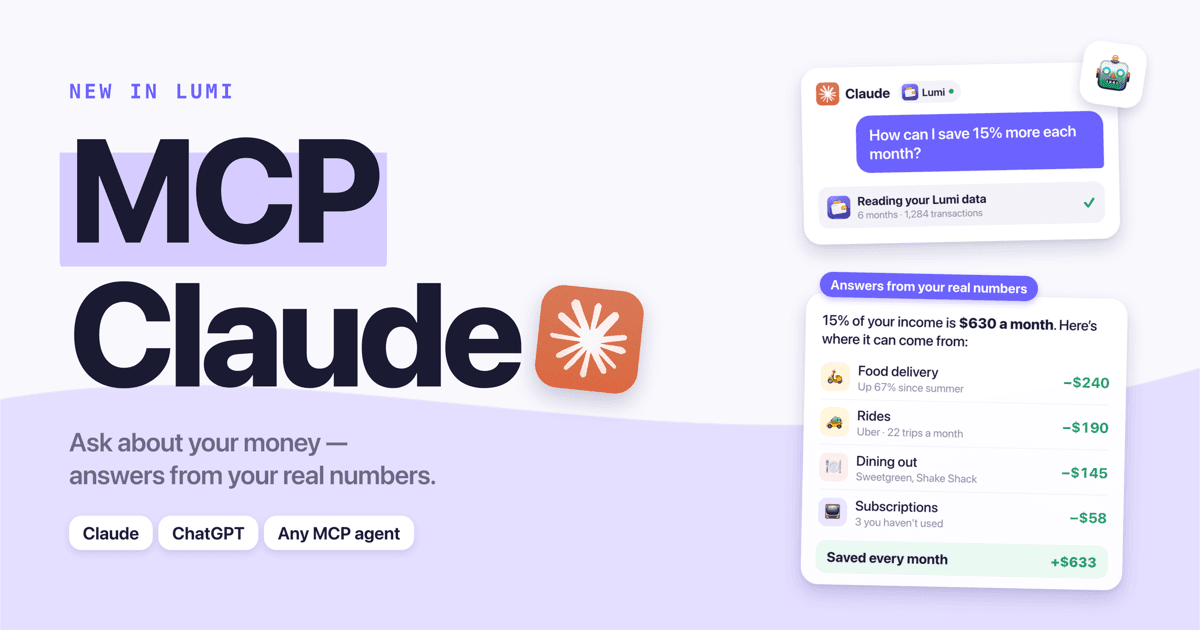
- Savings plan: "Using my Lumi data, how can I save 15% more each month? Name specific categories and amounts."
- Spending audit: "What changed in my spending over the last three months, and what's driving it?"
- Subscriptions: "List my recurring payments and any repeating charges that look like subscriptions. Which could I cancel?"
- Budget reality check: "Compare my budgets with what I actually spend. Which limits are unrealistic?"
- Goal planning: "When will I reach my savings goal at my current pace? What if I add $100 a month?"
- Budget from scratch: "Create a zero-based budget for next month from my actual averages."
There are 35 more in our list of AI budgeting prompts.
ChatGPT vs. Claude for budgeting
Both work with the same Lumi connector and both give solid, number-based answers. The practical differences are about setup:
| ChatGPT | Claude | |
|---|---|---|
| Where to add the connector | Settings → Apps & Connectors (web) | Settings → Connectors (web or desktop) |
| Plans with custom connectors | Varies — check OpenAI's current plan list | Free (1 custom connector), Pro, Max, Team, Enterprise |
| Works on mobile after setup | Depends on plan and mode | Yes |
| Setup guide | This page | Connect Claude to your budget |
If you already pay for one of them, use that one. If you're choosing, Claude's free plan is the cheapest way to try it.
Limits worth knowing
- ChatGPT doesn't do the logging. It analyzes data that already exists. You still need a habit of capturing expenses — Lumi automates most of that with Apple Pay auto-import, voice and receipt scanning.
- Read-only. The Lumi connector can't add or edit transactions. Ask ChatGPT for advice, then act in the app.
- It isn't a financial advisor. ChatGPT is great at spotting patterns and running scenarios, but double-check anything involving taxes, debt or investments with a qualified professional.
- Income matters. If you don't log income in Lumi, savings-rate answers will be off. The connector tells the AI to ask you for your income in that case — answer it.
FAQ
Is it safe to give ChatGPT access to my budget? With the Lumi connector, ChatGPT gets read-only access through standard OAuth and never sees your password or bank credentials. It can't change your data. What it reads becomes part of the chat, so review your ChatGPT data controls (for example, model training settings) if that's a concern.
Can ChatGPT connect to my bank account directly? Not through Lumi — Lumi doesn't connect to banks. ChatGPT sees what you track in Lumi. That's also why it works in any country and with any bank.
Do I need ChatGPT Plus to use the Lumi connector? You need a ChatGPT plan that supports custom MCP connectors, and OpenAI changes which plans include them. Check the developer mode or connectors section of OpenAI's help center for the current list.
Can I use a CSV instead of the connector? Yes. Export your data from Lumi (Settings → Export) and upload the file to ChatGPT. You'll just need to repeat it whenever you want fresh numbers.
Does the connector work in other AI tools? Yes. It's a standard MCP server, so it also works in Claude, Claude Code, Cursor, VS Code and other MCP clients. Overview: Lumi MCP for Claude, ChatGPT and AI agents.
Ready to take control of your spending?
Download Free on App Store