Lumi MCP: Connect Your Budget to Claude, ChatGPT and Any AI Agent
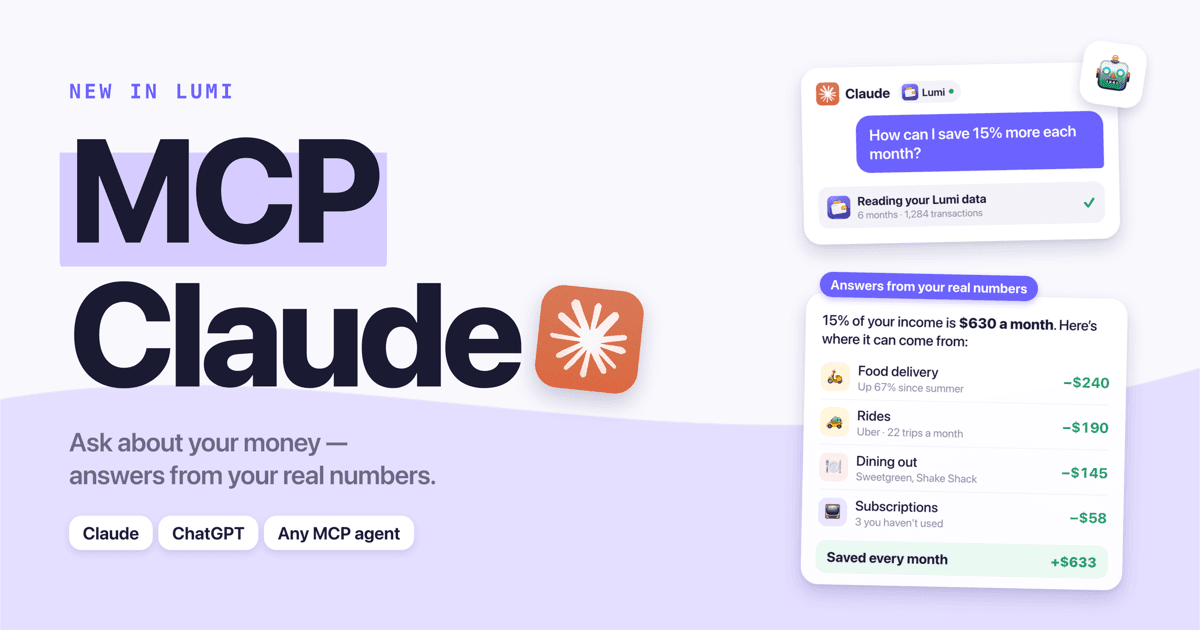
Lumi now has an MCP server. In practice, that means you can connect Claude, ChatGPT or any other MCP-compatible AI agent to your Lumi data and ask questions like "How can I save 15% more each month?" — and the assistant answers from your actual expenses, income, budgets and savings goals instead of generic advice. Access is read-only, it works with one URL, and it's part of Lumi Premium.
This page explains what the connector does, what the AI can and cannot see, how to set it up in each assistant, and the kinds of questions it's genuinely good at.
What is the Lumi MCP server?
The Lumi MCP server is a secure, read-only bridge between your Lumi account and AI assistants. It uses the Model Context Protocol — the open standard that Claude, ChatGPT, Cursor, VS Code and many other AI tools use to plug into outside data. Once connected, the assistant can pull your spending summaries on demand while it answers you.
Without it, asking a chatbot about your budget means exporting a CSV, pasting numbers into the chat, and repeating that every month. With it, the assistant fetches what it needs itself, at the moment you ask.
The connector URL:
https://lumi.herman-apps.com/api/mcp
What can you ask?
Anything you could answer by staring at your spending history for an hour — but in seconds. A few real examples:
| You ask | What the AI looks at |
|---|---|
| "How can I save 15% more each month?" | Monthly income and expenses, biggest categories, merchants trending up, subscriptions |
| "Which subscriptions am I still paying for?" | Recurring payments you set up plus repeating charges detected in your history |
| "Why was October more expensive than September?" | Month-by-month category totals, individual transactions behind the jump |
| "Am I on track for my vacation goal?" | Goal progress, deadline, required monthly amount vs. your recent contribution pace |
| "Which budget will I blow this month?" | Budget limits, spent so far, % of the month elapsed |
| "How much did I spend on coffee this year?" | Transactions filtered by merchant, note and category |
For a long list of ready-to-paste questions, see 35 AI budgeting prompts for Claude and ChatGPT.
Here's the kind of answer you get. Ask "How can I save 15% more each month?" and a connected assistant will typically work out what 15% of your income is, then build the plan from your own categories — for example: food delivery up 67% since summer (−$240), 22 rides a month (−$190), dining out (−$145) and three subscriptions you haven't used (−$58). The numbers in that example are illustrative; yours will come from your data.
What data the AI can see
The connector exposes eight read-only tools. The assistant decides which ones to call based on your question:
| Tool | What it returns |
|---|---|
| Financial overview | Average monthly income, expenses, savings rate, top categories, this month's pace |
| Monthly summary | Income, expenses, money moved to goals and net, month by month |
| Spending by category | Totals, share of spending, average ticket and top merchants per category |
| Top merchants | Where the money goes by payee, how often and how much |
| Recurring payments | Rent, subscriptions and salary you set up, plus repeating charges that look like untracked subscriptions |
| Budgets and goals | Each budget's limit and progress, each savings goal's progress and required monthly amount |
| Accounts | Your cards, cash and accounts with current balances |
| Transactions | Individual transactions, filtered by date, category, text or amount |
All amounts are converted into your main currency (or any currency you ask for), so multi-currency users get one consistent picture. Transfers into savings goals are counted as saving, not spending — so your "expenses" aren't inflated by money you set aside.
What the AI cannot do
- It cannot change anything. There are no write tools. The assistant can't add, edit or delete transactions, budgets or goals.
- It cannot see your bank login. Lumi never connects to your bank in the first place — see why we built an expense tracker without a bank account.
- It cannot run in the background. The assistant only reads your data when you ask it something in a chat. There's no monitoring and no automatic messages.
How to connect it
Setup takes about a minute in any assistant that supports remote MCP servers with sign-in (OAuth). The general flow is the same everywhere:
- Add a custom connector (sometimes called an MCP server or app) and paste
https://lumi.herman-apps.com/api/mcp. - A Lumi sign-in page opens. Sign in with the same account you use in the Lumi app.
- Review the permission screen — read-only access to your Lumi finances — and tap Allow.
Assistant-specific guides:
- Claude (web, desktop and mobile): How to connect Claude to your budget
- ChatGPT: How to use ChatGPT for budgeting with your real numbers
- Claude Code (terminal):
claude mcp add --transport http lumi https://lumi.herman-apps.com/api/mcp, then run/mcpto sign in - Cursor, VS Code and other MCP clients: add a remote (HTTP) MCP server with the URL above; the client will open the Lumi sign-in page on first use
Ready to take control of your spending?
Download Free on App StoreWho it's for
The connector is most useful if you already log your spending in Lumi — via Apple Pay auto-import, voice, Back Tap or receipt scans — and want to think about that data, not just look at it. Charts tell you what happened. A conversation lets you ask why, what if, and what to do next:
- "If I cut dining out in half, when do I hit my emergency fund goal?"
- "Compare my spending this year with last year and tell me what changed."
- "Build me a 50/30/20 budget from my actual last three months."
It's also a fast way to sanity-check a decision before you make it: "Can I afford a $1,200 trip in March without touching savings?"
Requirements
- Lumi Premium (shown as Pro in the app): $4.99/month or $39.99/year. The connector reads the cloud copy of your data, which only Premium accounts sync.
- Signed in to Lumi in the app, so your data is synced to your account.
- An AI assistant that supports custom MCP connectors: Claude (including the free plan, which allows one custom connector), ChatGPT on plans with custom connectors/developer mode, Claude Code, Cursor, VS Code and other MCP clients.
Privacy and security
We designed the connector so it's safe to leave connected:
- Read-only by design. Every tool is marked read-only; there is no code path that writes to your data.
- Standard OAuth sign-in. The assistant never sees your Lumi password. It gets a short-lived access token (one hour) that only works for this connector, and tokens are stored hashed on our side.
- Only your data. Each token is tied to your account; the server cannot return anyone else's records.
- Easy to disconnect. Remove the Lumi connector in your assistant's settings and it can no longer reach your data.
One honest caveat: whatever the assistant reads becomes part of that chat, so it's handled under your AI provider's privacy settings (for example, whether chats are used to improve their models). If that matters to you, check those settings before connecting — the same applies to any data you paste into a chatbot. For a wider look at this topic, read what your budgeting app knows about you.
FAQ
Is there a Lumi MCP server for Claude and ChatGPT?
Yes. Lumi's MCP server lives at https://lumi.herman-apps.com/api/mcp. Add it as a custom connector in Claude, ChatGPT or any MCP-compatible client, sign in with your Lumi account and allow read-only access.
Can the AI change my transactions or budgets? No. The connector only exposes read tools. It can summarize, filter and analyze your data, but it cannot create, edit or delete anything.
Does it work on the free Lumi plan? Not yet. The connector reads your synced cloud data, which is a Premium feature, so it requires Lumi Premium. If you connect without it, the assistant will tell you an upgrade is needed.
Does the AI watch my spending in the background? No. It reads your data only when you ask a question in a chat. Nothing runs on a schedule and the assistant never messages you on its own.
Which currency does the AI use? Your main currency by default. You can ask for any other currency ("show this in EUR") and the amounts are converted.
What if my income isn't logged in Lumi? The assistant is instructed to notice that and ask you for your monthly income instead of guessing — so savings-rate answers stay realistic.
New to the idea? Start with what MCP is in plain English, then pick your assistant: Claude or ChatGPT.
Ready to take control of your spending?
Download Free on App Store